How to create a reminder for a confirmation message?
Reminders are follow-up messages sent a few days after someone signs up for your newsletter. They help you:
- Bring back people who were close to confirming their signup – you give them a second chance without adding pressure.
- Build relationships before the signup is complete – you show that you want them to stay informed and not miss anything. A clear, friendly reminder helps leave a good impression of your brand.
- Steadily grow your subscriber count – one well-timed reminder can lift your signup rate.
- Reduce lead acquisition costs – reminders increase chance of conversion without extra spending.
How reminders work in ECDP
You can create up to two reminders for each confirmation message. You add reminders manually – they’re not created automatically.
A reminder is sent when:
- The recipient didn’t click the activation link in the confirmation.
- You set a reminder with a specific time delay.
A reminder is not sent when:
- The recipient has already confirmed the signup.
- The email address is on the blocked list.
How to set a reminder timing
You set the delay for each reminder in relation to the previous message in the sequence. You can choose:
- Daily delays: from 1 to 7 days.
- Hourly delays: from 1 to 168 hours.
How to calculate the sending time correctly?
- The confirmation message was sent on August 2 at 12:00 PM.
- The delay for the first reminder is set to 2 days and 7 hours. It will be delivered on August 4 at 7:00 PM.
- The delay for the second reminder is set to 2 days and 14 hours after the first reminder. It will be delivered on August 7 at 9:00 AM.
We recommend setting the first reminder after 24-48 hours. It’s an effective window because the signup is still fresh in the recipient’s mind, and you give them enough time to react.
How to add a reminder
- In the side menu, go to Settings > Consents > Confirmations.
- Choose one option:
- Create new confirmation – if you’re creating a new message series.
- Edit – if you want to update an existing confirmation.
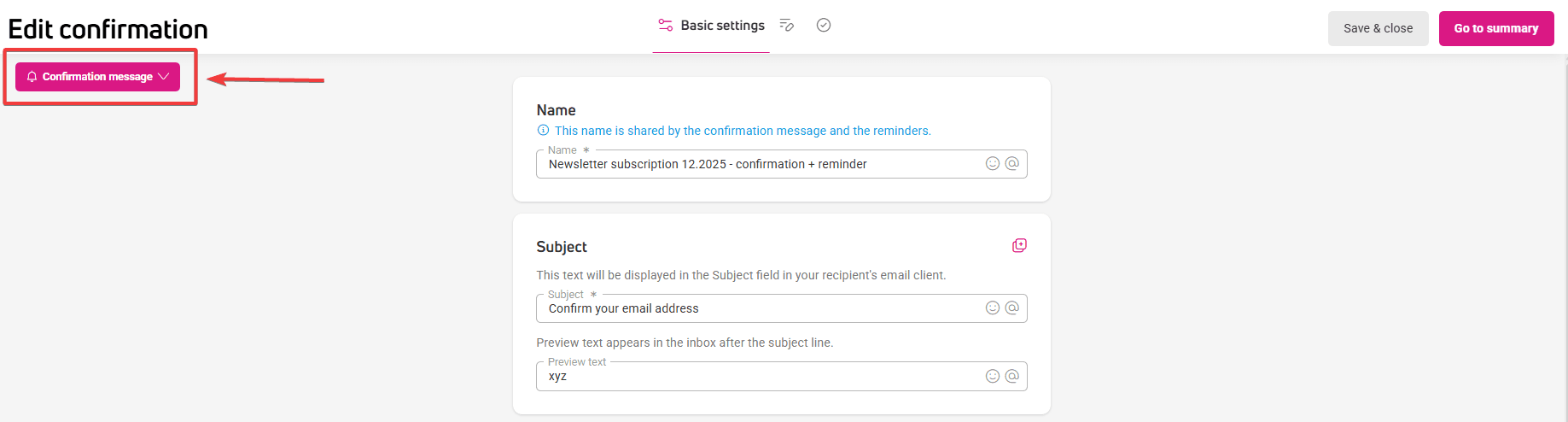
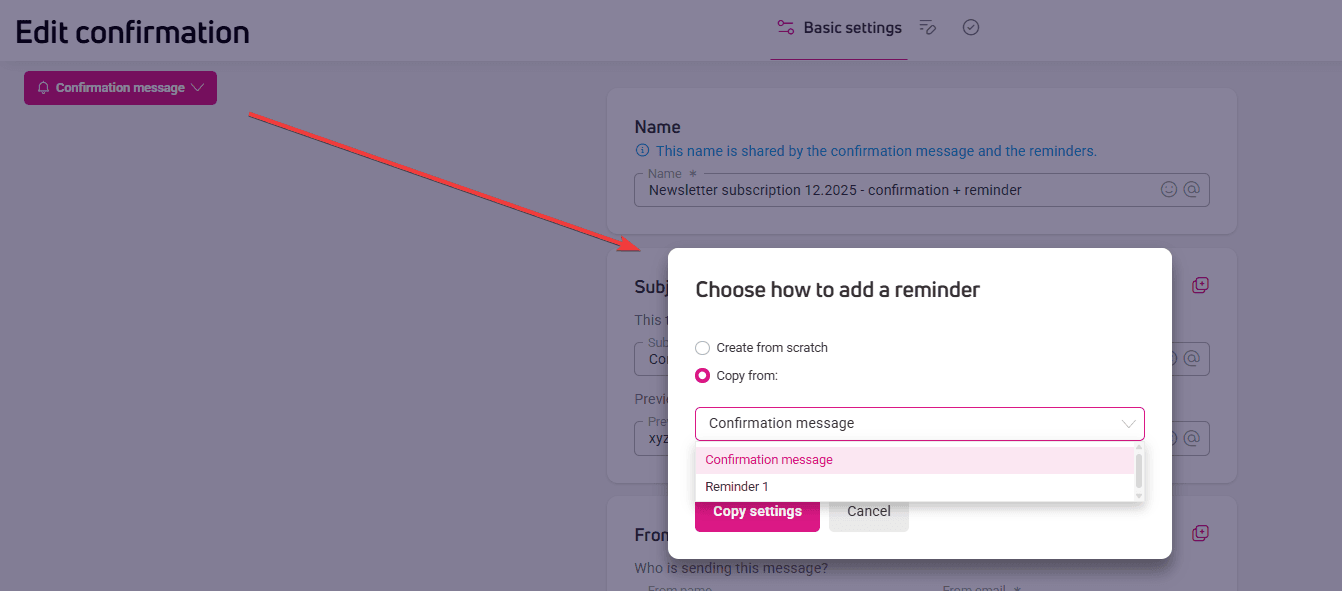
- In the editor, find the dropdown button on the left. Click it to add a reminder. You can add up to two reminders.

- Choose one of the options:
- Create from scratch.
- Copy from – pick a message from the sequence you’re working on.

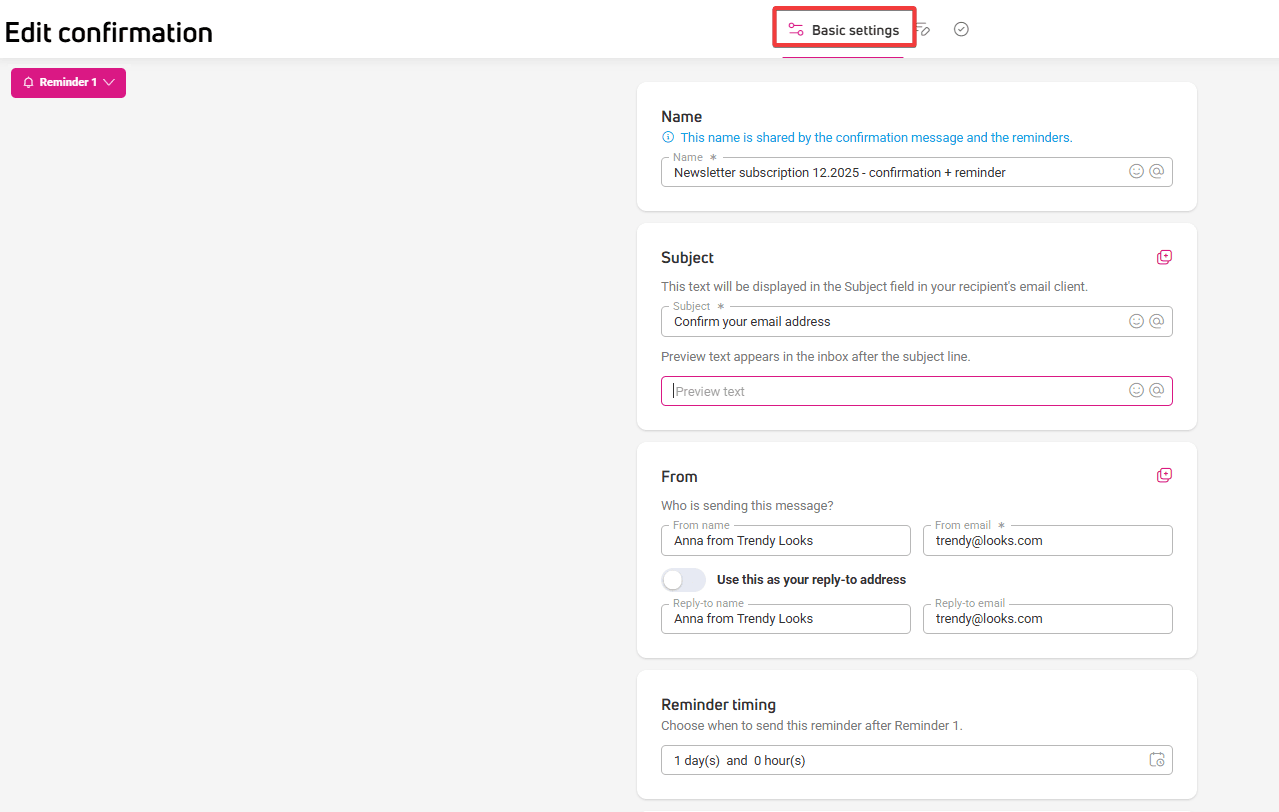
- In the Basic settings tab, add:
- A shared name for confirmation and its reminders. This name appears in the table under Settings > Consent > Confirmations.
- The subject line.
- The sender and reply-to settings.
- The reminder’s sending time.
- Tracking parameters – shared across the confirmation and all reminders.

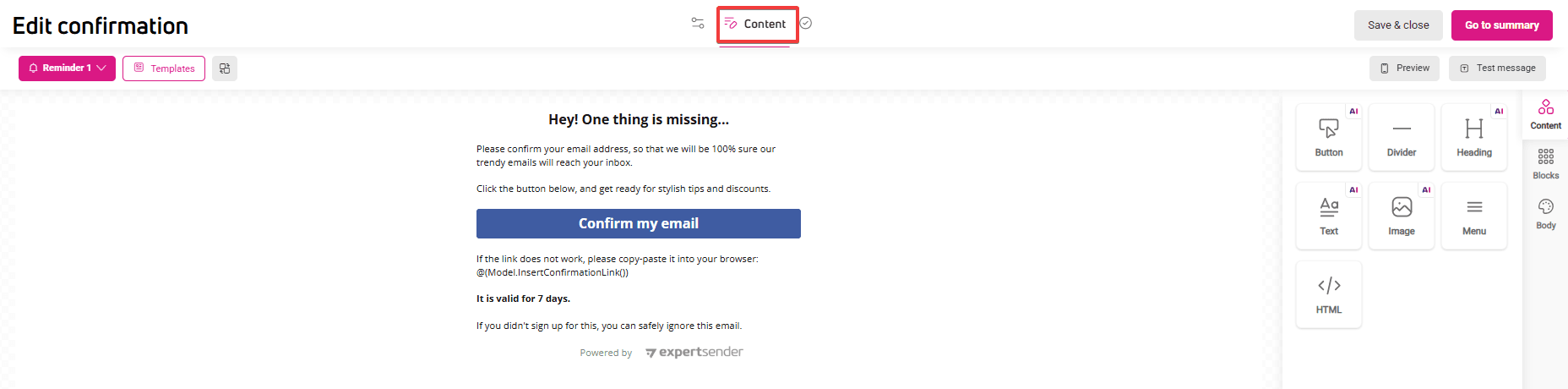
- Next, create the reminder content. Make sure to include a confirmation link in the message, for example under a button.

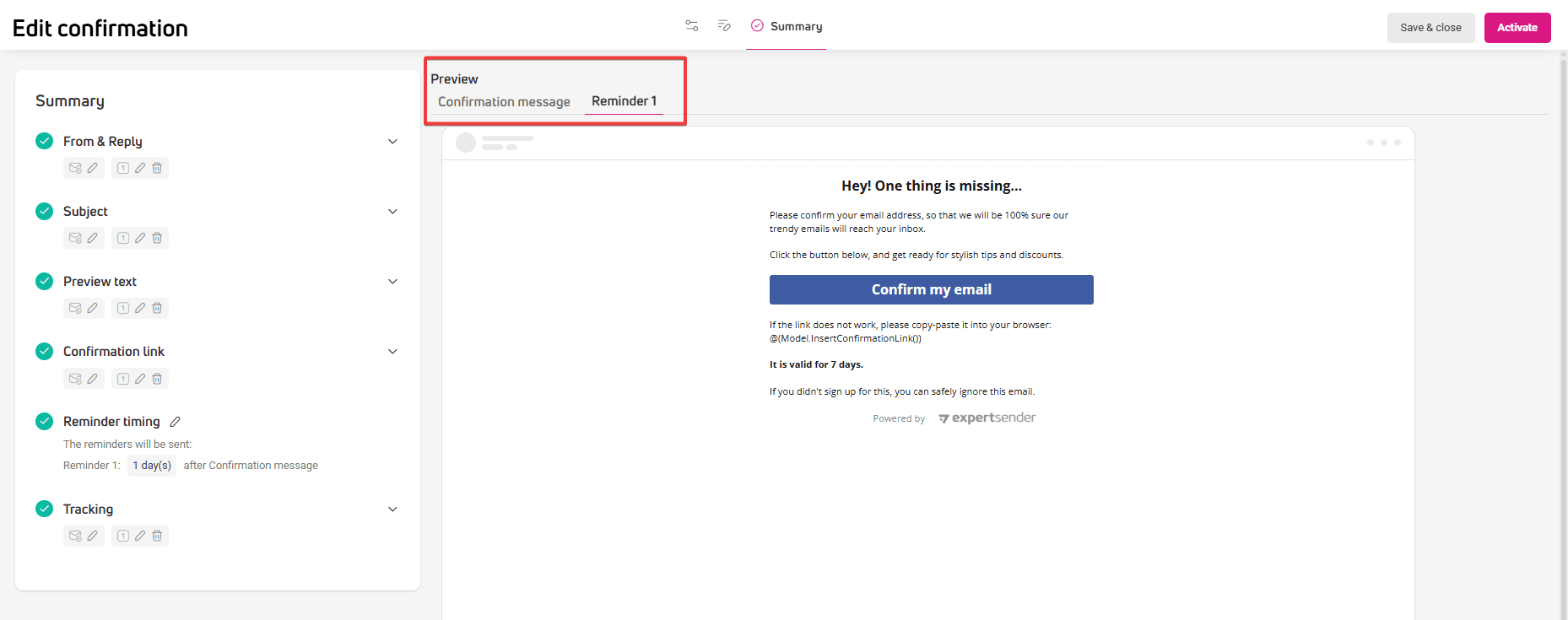
- In the Summary tab, you’ll see a full overview of all settings and a preview of each message.

- When everything is ready, click Send.
Checking how well reminders work
One of the most useful metrics for evaluating your reminders is the signup rate (opt-in rate). You’ll find it in the table under Settings > Consents > Confirmations, and in each confirmation’s individual report.
The report lets you see how many people confirmed their signup without a reminder and how many did it after receiving one. If the rate goes up after a reminder, it means your message did its job.
Summary
- You can add up to two reminders for one confirmation message.
- All messages in a sequence share one name in the table under Settings > Consents > Confirmations.
- Tracking settings apply to the entire sequence – the confirmation and both reminders.
- Each reminder counts its delay from the previous message in the sequence.
- You can reuse the subject line and sender settings across messages.