Logging in – two-factor authentication (2FA)
Two-factor authentication (2FA) adds a second verification step to the login process, protecting accounts even if a password is compromised. Once configured, users need both their password and a code from an authenticator app to log in.
If you are an administrator (Client Admin), you can require 2FA for specific users in your organization.
As an individual user (Client), you can configure and manage your own authenticator app from My account > Security.
Requirements
- You need an authenticator app on your phone, for example, Google Authenticator, Authy, or Microsoft Authenticator.
- 2FA uses the TOTP standard, so any app that supports TOTP works.
Configure 2FA for your account
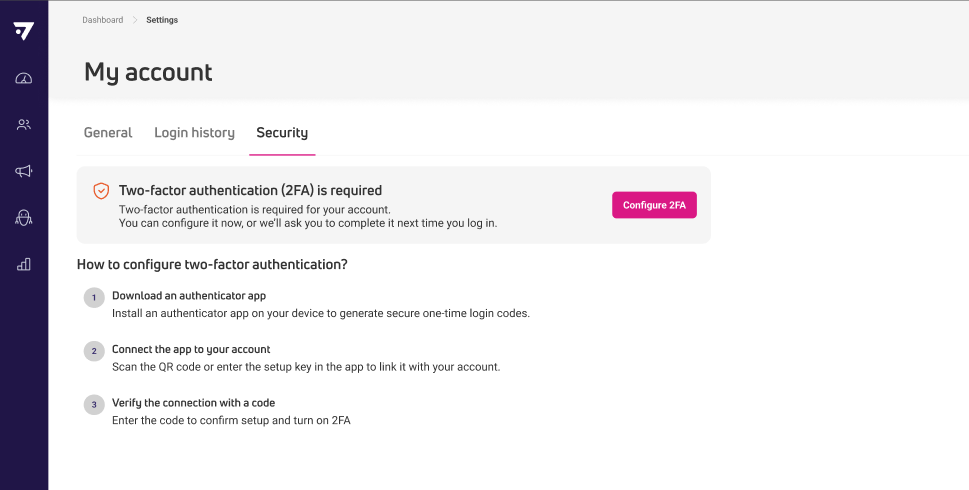
To set up 2FA on your own account, go to My account > Security.
- In the Security tab, click Configure 2FA.

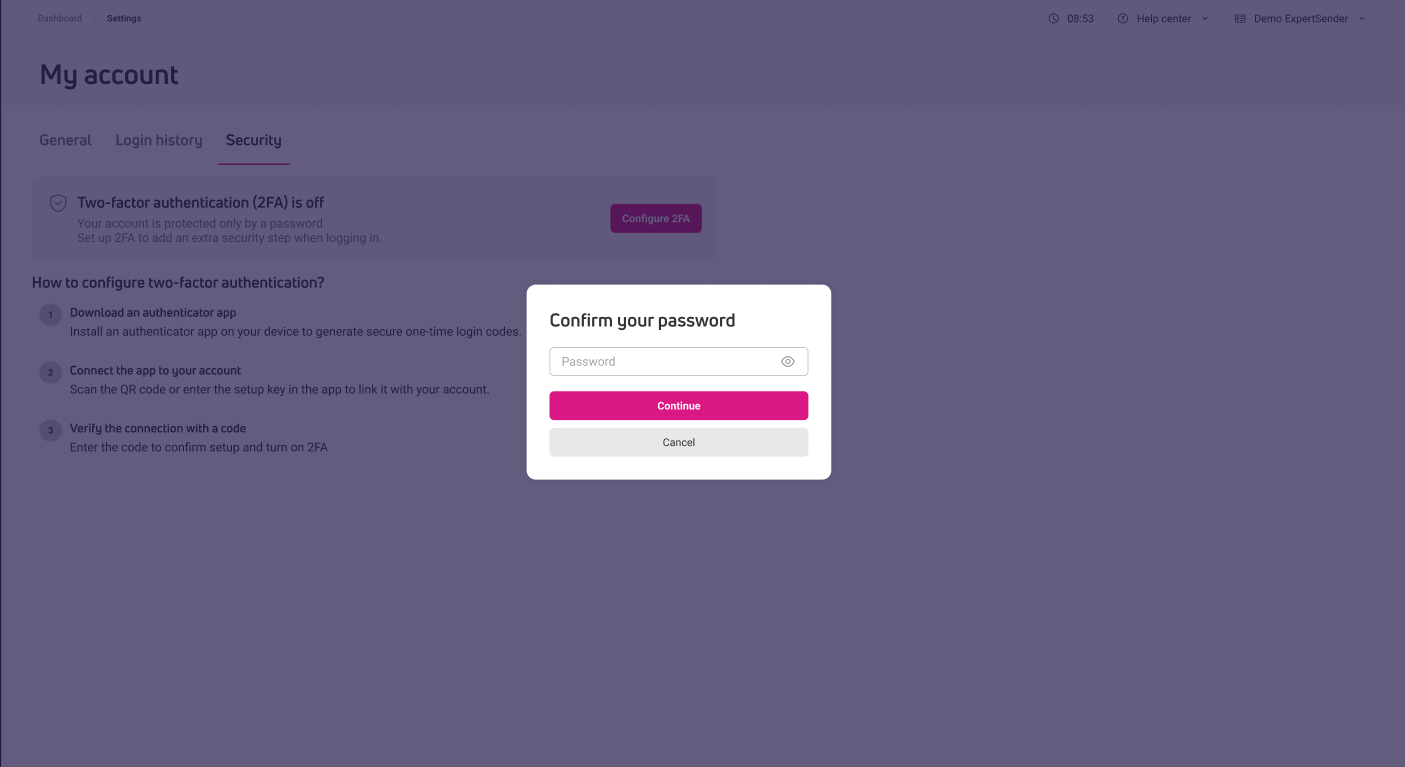
- Enter your current password to confirm your identity.

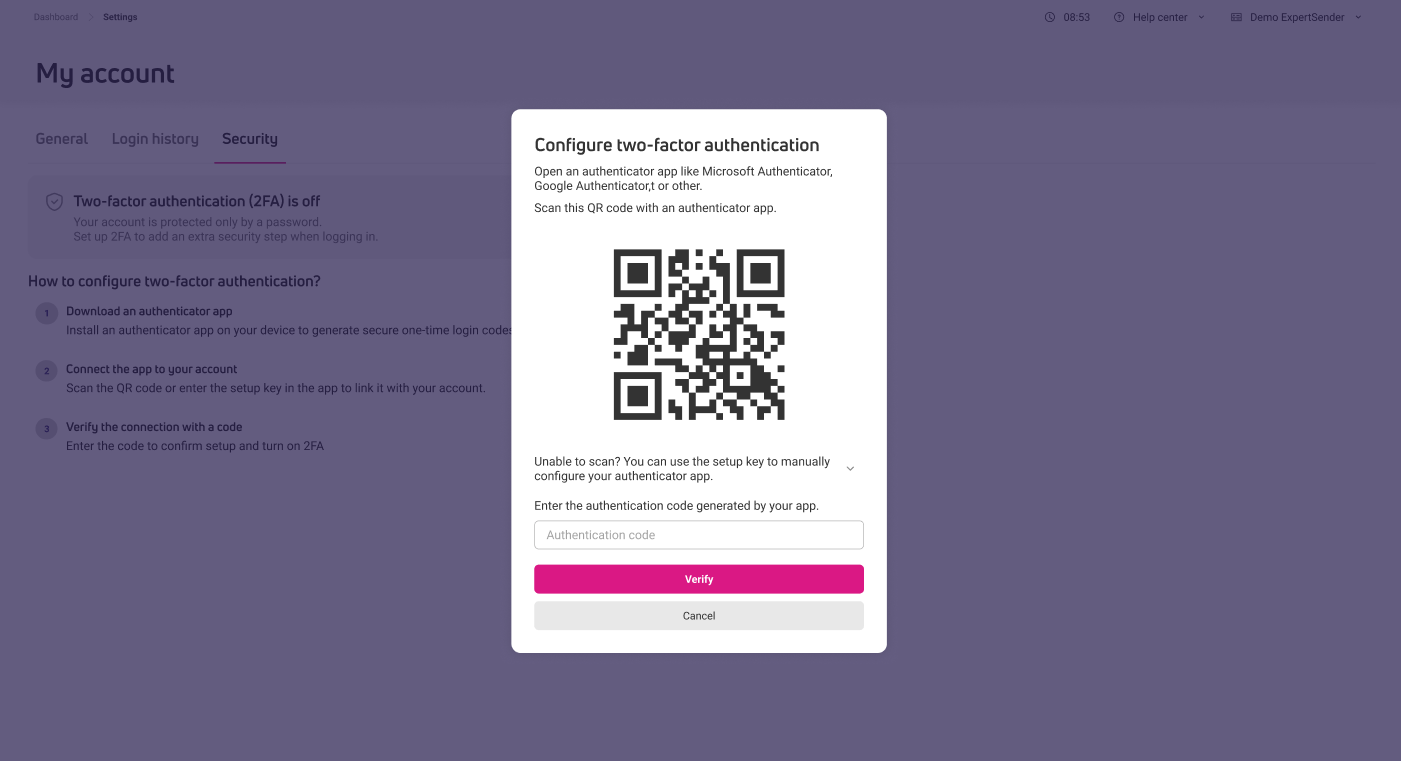
- A QR code will show on screen. You have 10 minutes to complete the setup. If you run out of time, you’ll need to re-enter your password to continue.

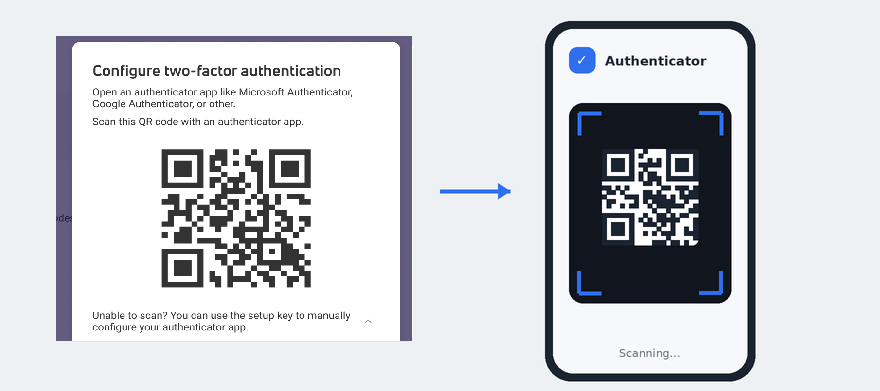
- Open your authentication app and scan the QR code shown on screen.
 If you can’t scan the code, click Type code manually to access the setup key and enter it into your app instead.
 - Enter the 6-digit code from your authenticator app to verify the setup.

- Copy or download your recovery codes. Check the confirmation box to confirm you’ve saved them.
- The 2-factor authentication for your account has been configurated.

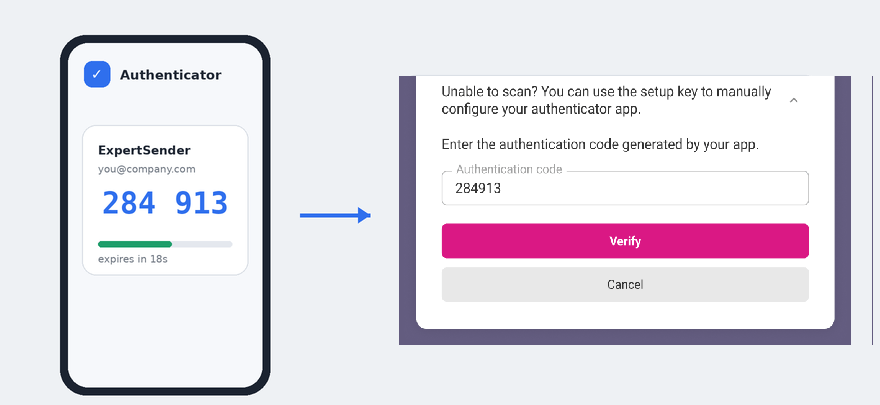
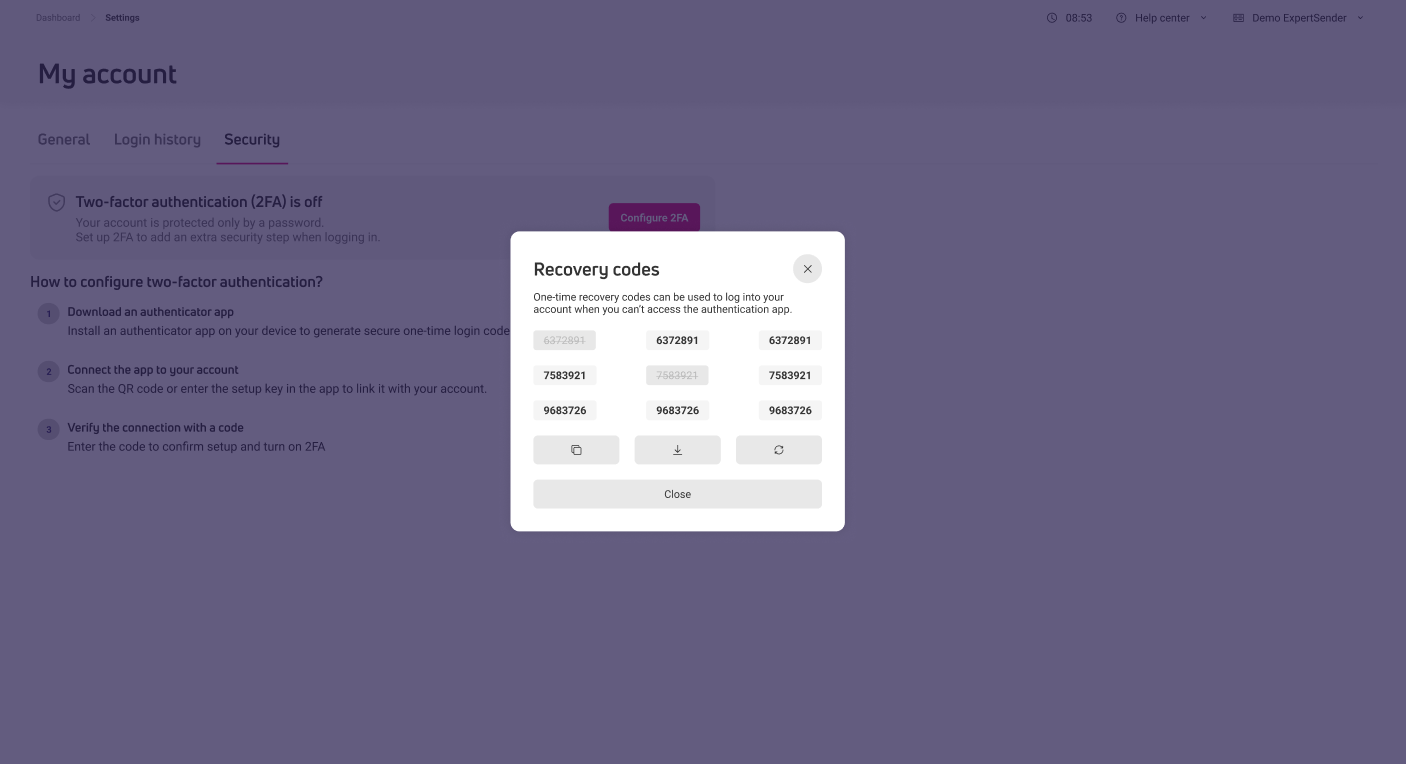
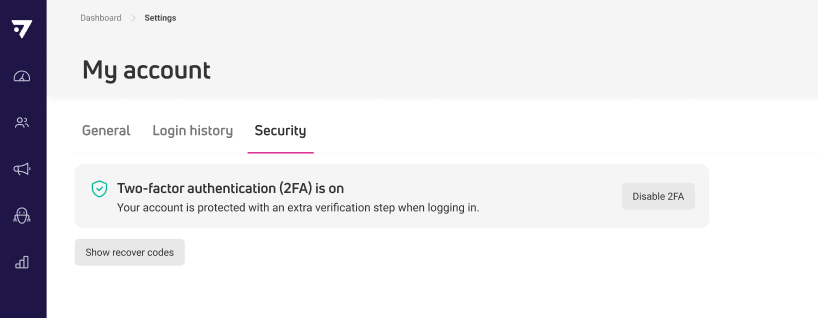
Recovery codes are one-time backup codes you can use to log in if you lose access to your authentication app. Store them somewhere safe, you won’t be able to view them again after closing this screen.
Log in with 2FA
Once 2FA is configured, your login process has an extra step.
- Enter your email and password as usual.
- When prompted, open your authenticator app and enter the 6-digit code.
If you don’t have access to your authenticator app, enter one of your 8-digit recovery codes instead. Each recovery code can only be used once.
Manage recovery codes
Recovery codes let you log in if you ever lose access to your authenticator app. You can view them at any time in My account > Security > Show recovery codes.
- View codes – codes you’ve already used are marked visually so you can track how many are left.
- Download or copy – save all current codes as a text file or copy them to your clipboard.
- Regenerate codes – creates a new set of codes and invalidates all existing ones immediately.
If you use your last remaining recovery code to log in, you’ll be prompted to regenerate a new set before you can continue.
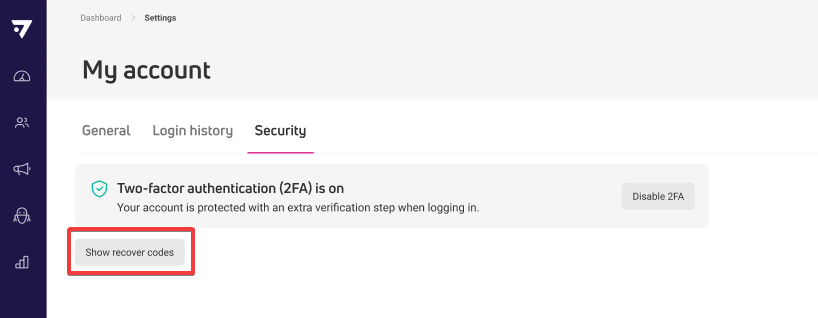
Require 2FA for users (admins)
As an Client Admin, you can control whether specific users are required to configure 2FA. This setting is available when creating or editing a user in Settings > Users.
For each user, set the Two-factor authentication option to:
- Not required – the user can configure 2FA optionally but isn’t forced to.
- Required – the user must configure 2FA. Setting this to Required shows a confirmation prompt before saving.
When you require 2FA for a user who hasn’t set it up yet:
- If they’re currently logged in, they’ll see a notification bar prompting them to configure 2FA. They can’t dismiss it until they’ve completed the setup.
- If they’re not logged in, they’ll go through the 2FA setup flow automatically at their next login before they can access their account.
Reset a user’s 2FA (admins)
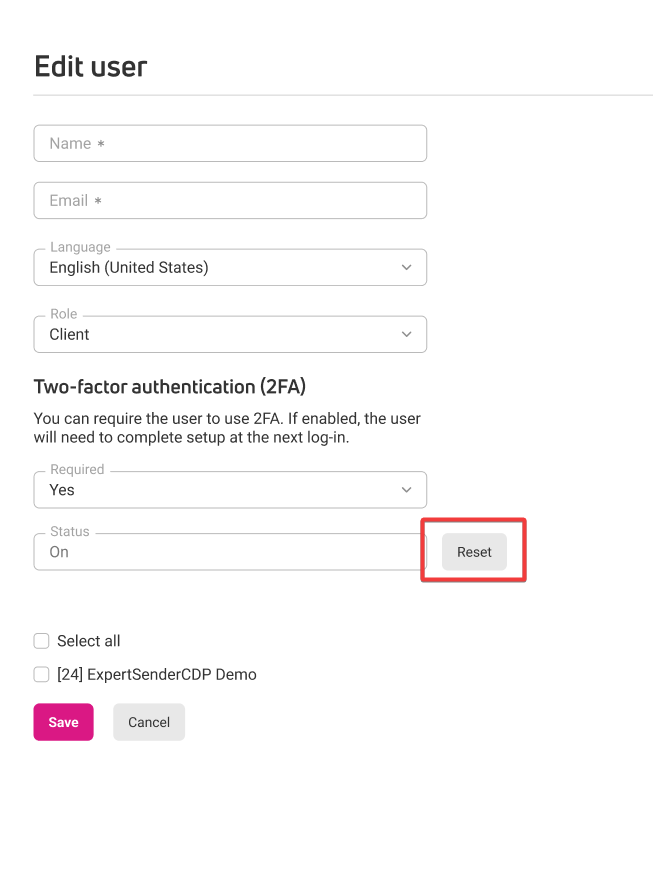
If a user loses access to their authenticator app and all recovery codes, you can reset their 2FA configuration.
- Go to Settings > Users and open the user’s profile.
- In the 2-factor authentication section, click Reset.
- Confirm the action in the prompt that appears.
After the reset, the user’s 2FA status changes to Off. They won’t be logged out. The Required setting stays unchanged – if their account required 2FA, they’ll need to configure it again at their next login.
Check 2FA status across your team
The Settings > Users grid includes two columns that give you an overview of 2FA across your organization:
- 2FA Status – whether 2FA is currently active (On) or not yet configured (Off) for each user.
- 2FA Required – whether 2FA has been set as mandatory for that user.
Frequently asked questions
Can I disable 2FA on my account?
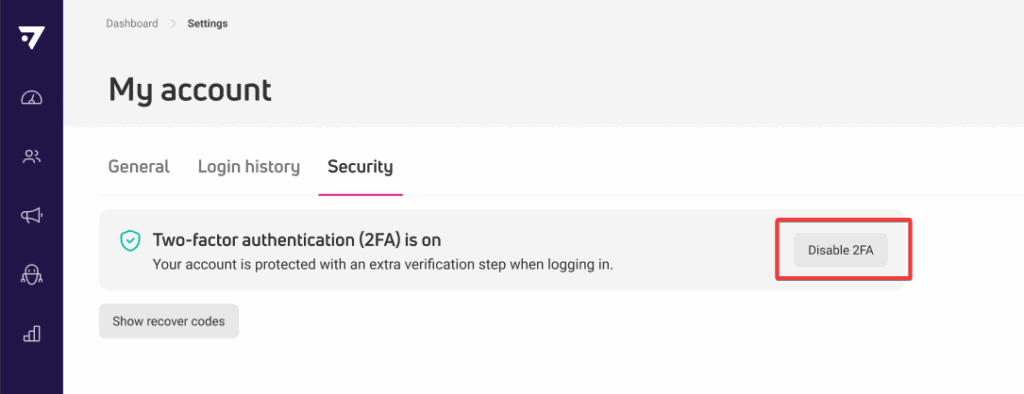
Yes, if your account administrator hasn’t set 2FA as required. Go to My account > Security and select Disable 2FA. This option is only visible when your account isn’t subject to a mandatory 2FA requirement from your administrator.
What if I don’t have my authenticator app or recovery codes?
If you’ve lost access to both your authentication app and all your recovery codes, contact your organization’s administrator. They can reset your 2FA configuration so you can log in and set it up again. If you’re the administrator, contact ExpertSender support.