Scenario elements
Each scenario consists of elements connected in a logical sequence.
In the side panel, you choose elements from two groups: communication channels and events.
Customers enter the scenario through a start point. Read more in Scenario start points.
Communication channels
Channels are ways to communicate with customers in the scenario. You have four ways to reach them:
- Send email – create messages directly in the scenario. You can use personalization and dynamic content.
- Send SMS – short, specific messages. Remember about SMS marketing consents.
- Send web push – instant notifications. Set delivery time for offline users (maximum 72 hours).
- Send mobile push – notifications sent to your customers’ mobile apps.
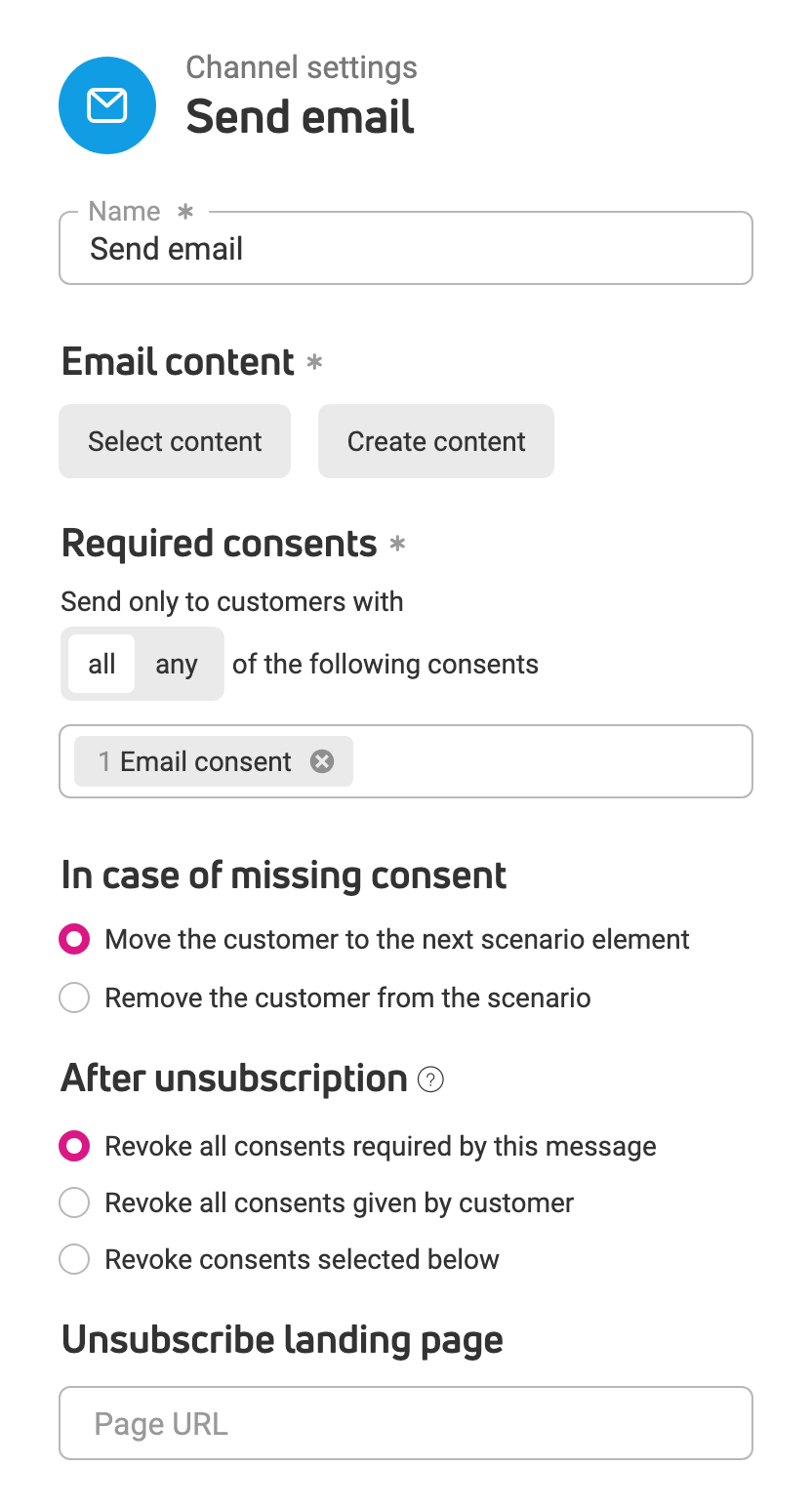
In every channel, you choose the content: click Select content to use existing content or Create content to create it now. If a customer can’t receive the message, In case of missing consent (email and SMS) or In case of missing consent or channel (web push and mobile push) decides what happens: the customer moves to the next scenario element (the default) or leaves the scenario.
The other settings depend on the channel:
- Send email and Send SMS – in Required consents, choose the consents and whether a customer must have given all or any of them. In After unsubscription, choose which consents ECDP withdraws when a customer unsubscribes. In email, you can also set an Unsubscribe landing page.
- Send web push – select the Website and set the Notification lifespan, which is how long ECDP tries to deliver the notification to offline recipients (up to 72 hours).
- Send mobile push – select the app and set how long ECDP tries to deliver the notification to offline recipients (up to 28 days). Read more in Mobile push notifications.
Events
Events are actions you want to initiate for customers in the scenario.
API call
The API call element sends a request to an external system while a customer is in the scenario. You can fetch data, for example a customer’s status from your CRM, or send data to another service, and use the response later in the scenario.
Example use: Check a customer’s status in your loyalty system and send a message only to customers the system recognizes.
Before you start, make sure that the system you want to call accepts HTTP requests and that its address is available from the internet. You can use dynamic content in the request, so each request carries the data of the customer who goes through the scenario.
Setting up the API call element
- In the side panel, under Events, drag API call onto the scenario and drop it on the line between two elements. The element settings open.
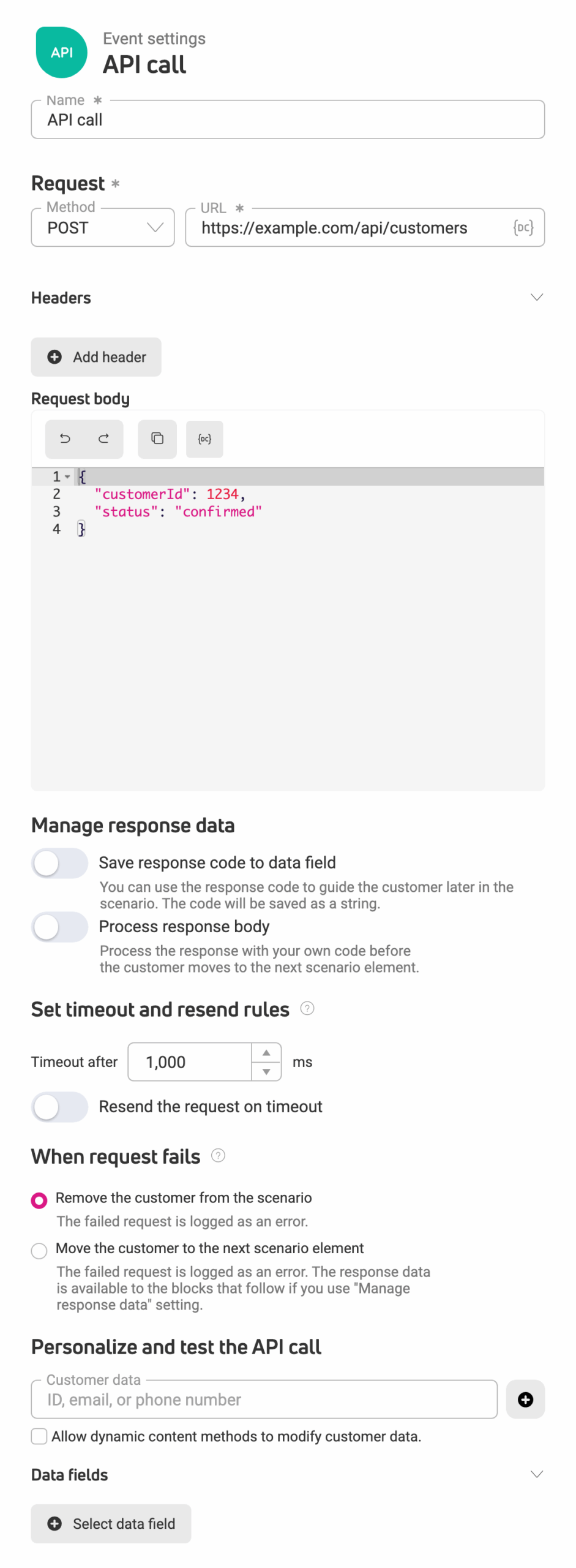
- In Request, choose the Method (GET, POST, PUT, or DELETE) and enter the URL of the system. If your system requires extra information, click Add header. For POST, PUT, and DELETE, enter the Request body in JSON. Use the dynamic content icon to add customer data to the URL, headers, or body.
- In Manage response data, choose what to do with the response:
- Save response code to data field – ECDP saves the response code (for example 200 or 404) in a data field, so the following elements, such as Segmentation, can use it.
- Process response body – write your own code that works on the response before the customer moves to the next element.
- In Set timeout and resend rules, set how long the element waits for the response (1,000 ms by default, up to 30,000 ms). To try again when the response doesn’t arrive in time, turn on Resend the request on timeout and choose the number of attempts.
- In When request fails, choose what happens to the customer when the request fails: Remove the customer from the scenario (the default) or Move the customer to the next scenario element. A request fails when your system responds with an error (a response code starting with 4 or 5) or doesn’t respond in time.
- Click Save.
Remember: a timeout doesn’t mean your system ignored the request. If you turn on resending, your system may receive the same request more than once, for example creating a duplicate record in your CRM.
ECDP logs every failed request. You can find it in Audit > Scenarios, in the Errors tab.
Testing the API call element
Before you activate the scenario, test the request. A test shows what ECDP sends and what your system returns.
- In Personalize and test the API call, enter a customer’s ID, email address, or phone number. You can also test without a customer, but dynamic content that needs customer data may then stay empty.
- Click Test API call.
- Check the test results: the request that was sent, the response code, and the response body.
Remember: a test sends a real request to the address you entered. If your system acts on it, for example creates a record or sends a message, it does so for the selected customer. By default, a test doesn’t change the customer’s data in ECDP.
How to use the API call element?
Example 1: Sending a message only to customers your system recognizes
You keep customer loyalty data in an external system. Before the email, add an API call element with the GET method and put the customer’s email address in the URL with dynamic content. Keep Remove the customer from the scenario in When request fails. If your system answers with code 200, the customer goes on to the email. If it answers with code 404 because it doesn’t know this customer, the customer leaves the scenario without getting the message.
Example 2: Sending customer data to an external system
You want to add every customer who completes a survey to your CRM. After the survey email, add an API call element with the POST method and the address of your CRM. In Request body, enter JSON with the customer’s email address and name, added with dynamic content. In When request fails, choose Move the customer to the next scenario element, so customers still get your thank-you message if the CRM doesn’t respond.
Delay
Pauses progression to the next step for a specified time.
Examples: Wait 2 hours before sending a cart reminder, or 3 days before offering a discount.
Set customer data
Changes customer information – attributes or consents – based on their actions in the scenario.
For consents, you can change their status to:
- Given.
- Not given.
For attributes, you have operations depending on their type:
For String, Text, Single select, URL, Yes/No (boolean) attributes:
- Set to a constant value – overwrites the existing attribute value with one you provide in the field below. The attribute value will change for every customer who enters this element in the scenario.
- Clear value – removes the value of the selected attribute for every customer in this element.
For Date, Date and time attributes:
- Set to current date / Set to current date & time – changes the existing attribute value to the date and time when the customer entered this scenario element.
- Set to a constant value – overwrites the existing date and time with one you provide in the field below. The date and time will change for every customer who enters this scenario element.
- Clear value – removes this attribute’s value for every customer in this element.
For Money, Number attributes:
- Increase by a constant value – increases the attribute value by a constant, for example, adds 1 to the number of orders placed by customers.
- Decrease by a constant value – decreases the attribute value by a constant, for example, subtracts 1 from the number of orders customers can receive discounts on.
- Set to a constant value – overwrites the existing value with one you provide in the field below. The value will change for every customer who enters this scenario element.
- Clear value – removes this attribute’s value for every customer in this element.
How to use the ‘Set customer data’ element?
Example: Updating attributes based on customer reactions
Send a satisfaction survey, then mark customers based on their reactions. Create an attribute “Completed survey” (type: Yes/No), then use segmentation after sending the survey email. In each path, add a “Set customer data” element:
- For customers who completed the survey → set value to Yes.
- For customers who didn’t complete it → set value to No.
This creates segments for future campaigns based on engagement, like discounts for active customers or reactivation for inactive ones.
Segmentation
Splits the scenario into different paths based on customer characteristics.
You can add a maximum of 10 segments. One segment will always be marked as All others – it collects customers who didn’t meet the conditions of other segments.
Example: New customers get a 20% welcome code; loyal customers get exclusive access to new products.