Scenario start points
A start point is the moment a customer enters the scenario. You can trigger it manually (at a chosen time), based on customer actions like abandoned cart, or through events registered in the platform.
Start points available in scenarios are divided into main triggers and website and mobile app activities.
After selecting the starting point, the side panel will display a list of channels and events you’ll use to build the scenario. Read more in Scenario elements.
Main triggers
Sign-up
Only customers who meet these conditions will enter the scenario:
- they have given all consents selected in the start point,
- they belong to the chosen segment (you can select only one).
The scenario will start only if the sign-up information comes from:
- a form on your website (created in ECDP or another one, if it uses our script),
- or from the API.
Customers added manually in the Client 360 panel or imported from a file, even if their consents are filled in, will not enter the scenario.
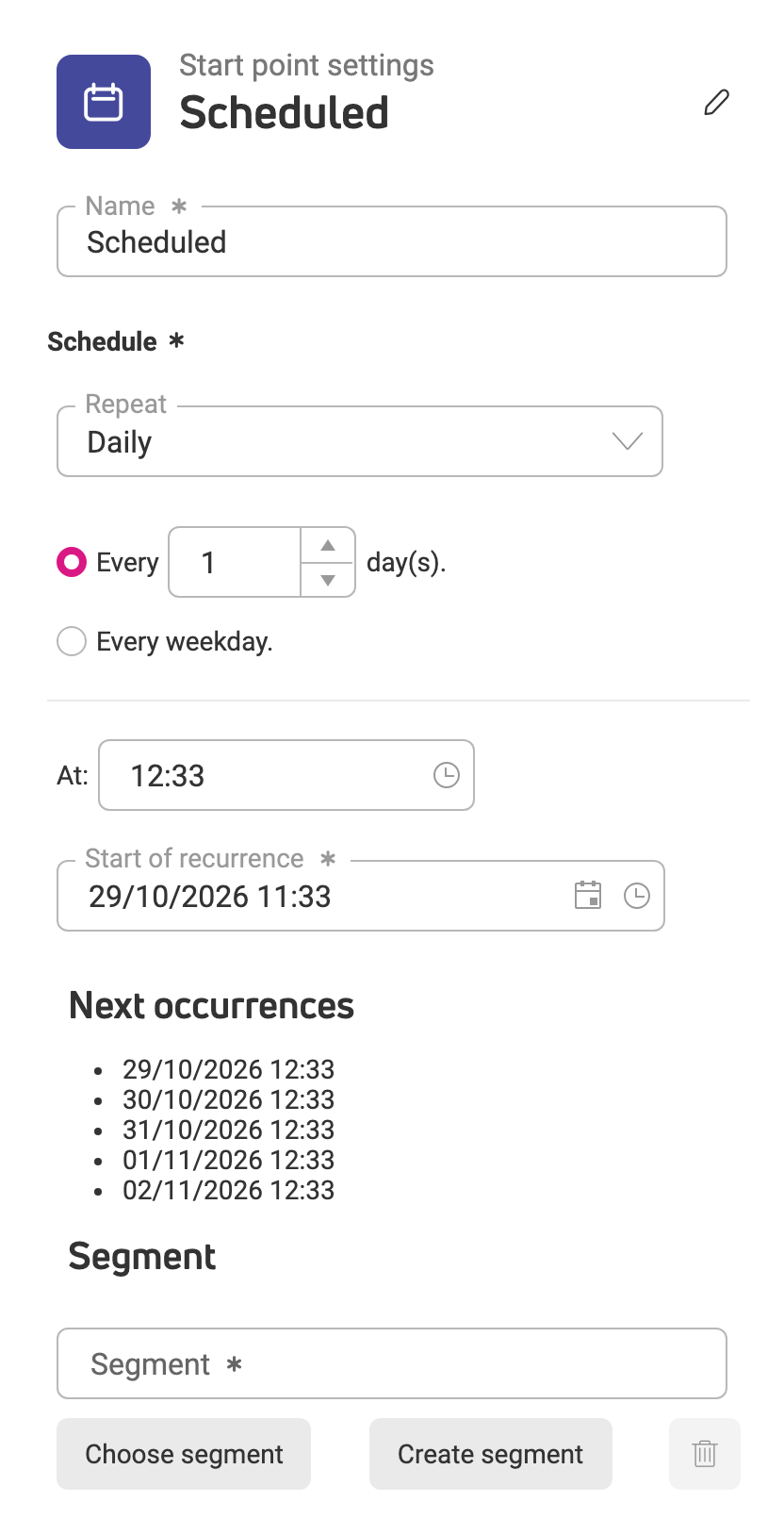
Repeat on schedule
Customers from the selected segment will enter the scenario at regular intervals:
- Daily at a specific time.
- On selected days of the week.
- Once a month on a specific day.
On date
The scenario runs once, on a specific date and time for the selected customer segment.
Custom event
The scenario starts when a customer performs a specific action on the site, like downloading an e-book or watching a product video. You need to define this event beforehand in Scenarios > Custom events > Create custom event.
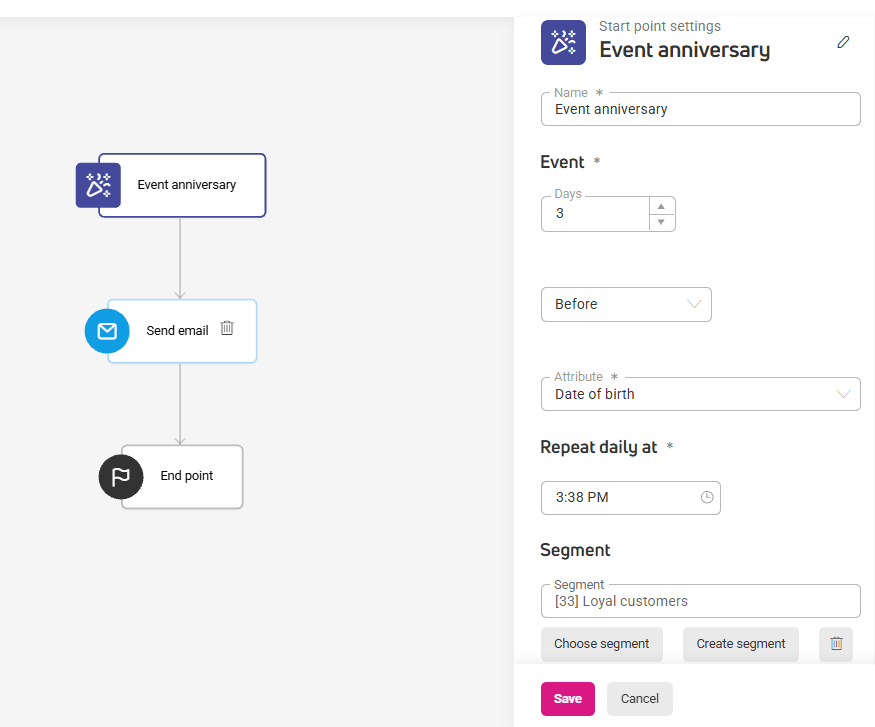
Event anniversary
The scenario will target customers celebrating a specific event at a specific time, exactly on the day of the event, or a certain number of days before or after the event.
This starting point is ideal for automated communication with customers whose birthdays are, for example, in 3 days.
Website and mobile app activities
These start points work for the websites and mobile apps connected to your account. Select the ones the scenario should react to.
Abandoned browse
Customers who viewed a product but didn’t add it to their cart will enter the scenario.
Example use: Send an email with product information and other customers’ reviews.
Abandoned cart
Customers who added a product to their cart but didn’t complete the purchase will enter the scenario.
Example use: Send a series of 3 emails – cart reminder, purchase support, discount code.
Add to cart
Customers will enter the scenario after adding any product to their cart.
Example use: Suggest complementary products or shipping information.
Order
Customers will enter the scenario as soon as they land on the order confirmation page. The order’s status isn’t important.
Example use: Send a thank you email or suggest additional products.
Price drop
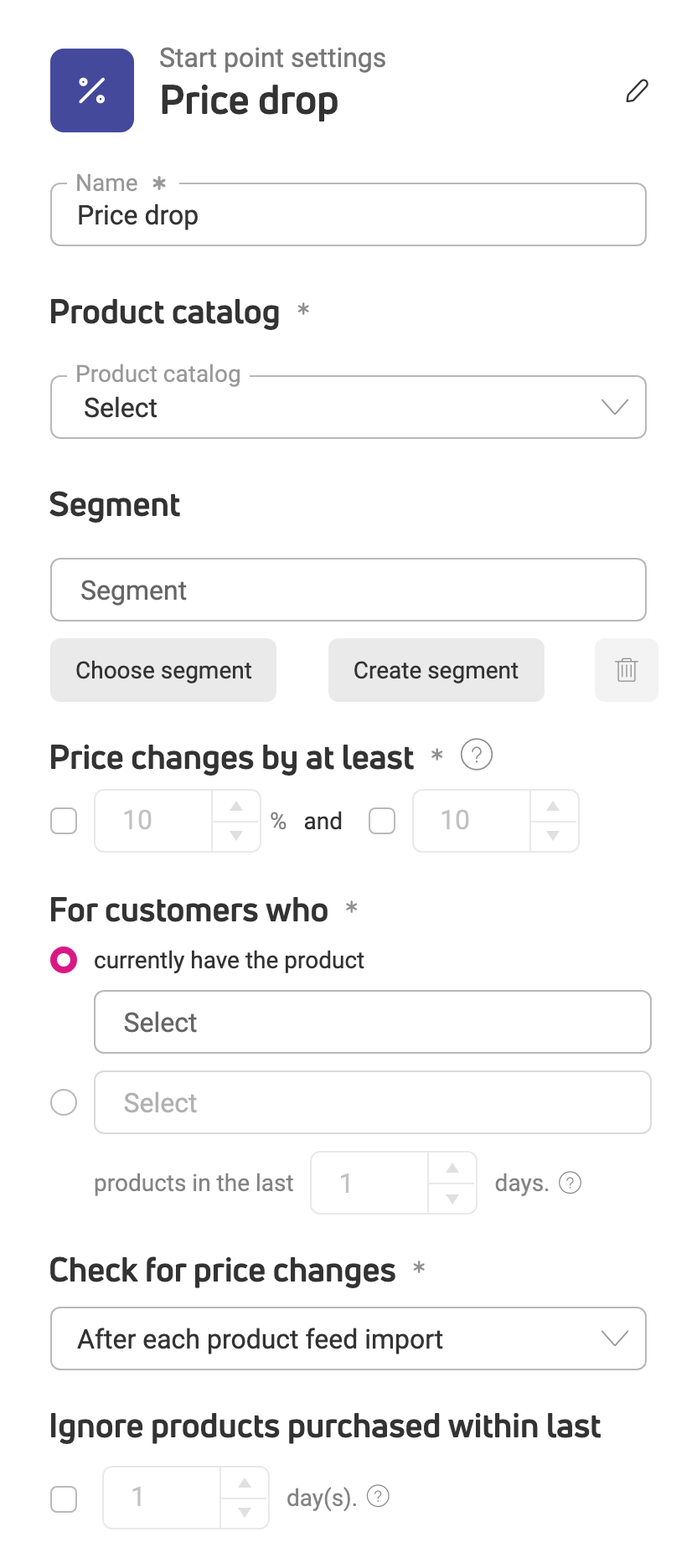
Customers will enter the scenario when the price of products they’re interested in drops. We compare the current product price with the price the customer saw on your site or in your app.
Configuration:
- Product catalog
Select the product catalog with the products you want to track.
- Price changes by at least
Specify the minimum reduction value and type – percentage or amount reduction in your store’s currency.
You can choose one or both conditions. If you select both conditions, the scenario will trigger when both are met, for example, product prices drop by 10% but by no less than 10 PLN.
- For customers who
Specify the conditions a customer must meet to enter the scenario and get information about the reduced price. Choose one of two conditions:
Customers have the product: in cart, on favorites list. You can choose both options. This means the customers will be notified about the reduction when they have the product on their wishlist and in their cart.
Customers: viewed product, added product to cart, added product to wishlist. You can choose all options and limit the time customers viewed or added the product – up to 60 days.
- Check for price changes
Set the schedule for checking reductions in the product feed:
- After each product feed import – ECDP finds products whose price has dropped since the previous scheduled import.
- Daily – how often reductions will be checked in days. You can set a range from 1 to maximum 31 days.
- Weekly – reductions will be checked weekly on selected days. You can choose one or multiple days.
Don’t check prices too often – frequent changes can generate spam. Optimally once daily or every few days.
- Ignore products purchased within last
In this section, exclude customers from the scenario who have already ordered the desired products within a maximum of 30 days.